
Powerful Fix (7 Steps): IPTV Smarters Pro Windows Setup — Avoid Frustrating Errors Fast
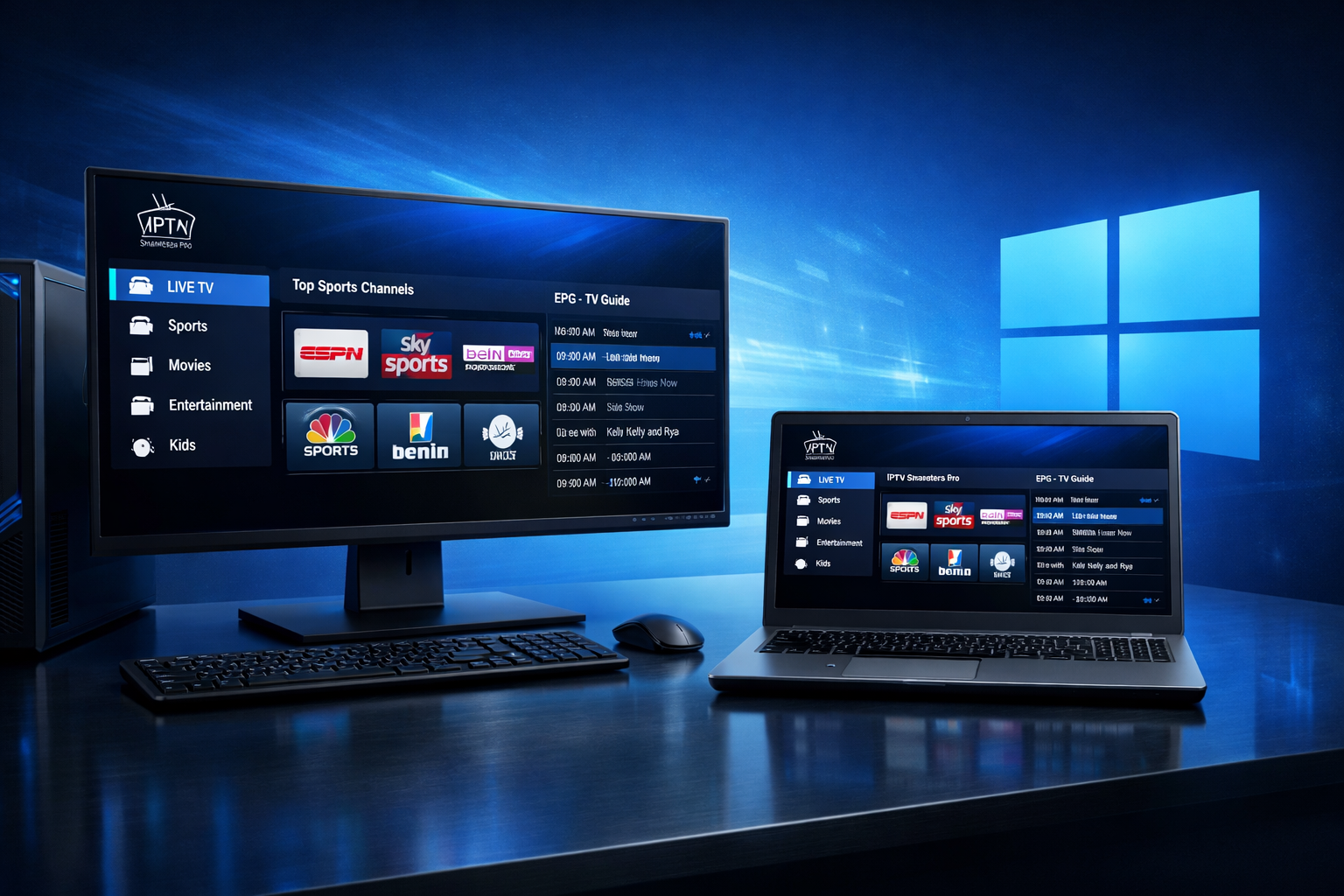
This IPTV Smarters Pro Windows guide covers safe download, install, login (Xtream Codes + M3U), EPG fixes, and the best player settings for smooth playback on Windows 10/11.
Quick Links (IPTV Smarters Pro Windows)
What You’ll Need for IPTV Smarters Pro Windows
- Windows PC (Windows 10 or Windows 11 recommended)
- Stable internet (Ethernet preferred, or strong Wi-Fi)
-
IPTV Smarters Pro Windows login details (usually one or more):
- Xtream Codes API (best for IPTV Smarters Pro Windows)
- M3U Playlist URL (backup option on IPTV Smarters Pro Windows)
- EPG XML URL (optional; mainly for M3U users)
If you’re using the same service on other devices, you may also want these internal guides: Xtream Codes setup, M3U playlist setup, and buffering fix.
Step 1: Download IPTV Smarters Pro Windows Safely
- Open your browser on your PC.
- Download IPTV Smarters Pro Windows from the official developer source (avoid “modded” installers).
- If the download is a ZIP file, right-click → Extract All.
- Before running it, right-click the file → Scan with Microsoft Defender.
External reference (security): Microsoft Support (dofollow), and Windows Security (Defender) .
Step 2: Install IPTV Smarters Pro Windows (Windows 10/11)
- Double-click the installer.
- If SmartScreen appears, click More info → Run anyway only if the source is trusted.
- Complete the setup wizard: Install → Finish.
- Open IPTV Smarters Pro Windows from the Start Menu or desktop shortcut.
If Windows blocks the installer, this official guide helps: Microsoft SmartScreen help .
Step 3: First Launch (IPTV Smarters Pro Windows)
- Open IPTV Smarters Pro Windows.
- Accept Terms & Conditions if prompted.
- Allow only basic permissions required for playback/network.
Step 4: IPTV Smarters Pro Windows Login (Xtream Codes Recommended)
Method A: IPTV Smarters Pro Windows Xtream Codes API Login
- Click Add User / Add New User.
- Select Login with Xtream Codes API.
- Enter your Server URL, Username, and Password.
- Login and confirm Live TV + EPG load (if supported).
Method B: IPTV Smarters Pro Windows M3U Playlist URL (Backup)
- Click Add User → Load Your Playlist or File → URL.
- Paste the M3U Playlist URL and sign in.
- If you have an EPG XML URL, add it in Settings → EPG, then refresh.
Step 5: Best Settings for IPTV Smarters Pro Windows (Smooth Playback)
Go to Settings → Player Settings:
- Streaming Format: HLS (best stability for IPTV Smarters Pro Windows)
- Hardware Decoding: ON (if available)
- Buffer Size: Small first → then try Medium
- Video Output / Renderer: Auto
If your issue is buffering, use this internal guide: IPTV Smarters buffering fix.
Step 6: IPTV Smarters Pro Windows EPG Fix (TV Guide)
- Open Settings → EPG.
- Tap Update / Refresh EPG and wait 30–120 seconds.
- If guide times are wrong, adjust EPG Time Offset (+1 / -1 hour), then refresh again.
Full internal guide: IPTV Smarters EPG guide.
External reference (EPG format): XMLTV documentation .
Step 7: IPTV Smarters Pro Windows Problems & Fixes (Quick)
IPTV Smarters Pro Windows won’t open / crashes
- Restart your PC.
- Update Windows (Windows Update).
- Reinstall IPTV Smarters Pro Windows from the trusted source.
“Invalid Login” on IPTV Smarters Pro Windows
- Re-check the Server URL format (including the port).
- Copy/paste username and password (no spaces).
- Try M3U method briefly to confirm the subscription is active.
Buffering on IPTV Smarters Pro Windows
- Use Ethernet if possible.
- Close heavy background apps (downloads/cloud sync).
- Use HLS first, then test MPEGTS.
✅ IPTV Smarters Pro Windows: use Xtream Codes first
✅ Player settings: HLS + Hardware Decoding ON
✅ Buffer Small → Medium
✅ Refresh EPG + set EPG Time Offset
✅ Ethernet beats weak Wi-Fi