
IPTV Smarters EPG Guide (UK 2026): Complete Setup + Fix (Step-by-Step)
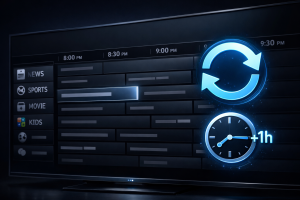
(2) add/validate the EPG XML (XMLTV) URL, and (3) correct device time zone / EPG offset for UK time.
This IPTV Smarters EPG Guide is written for UK viewers who want a reliable TV guide inside Smarters (Smarters Player / Smarters Pro).
We’ll walk through the fastest fixes in the correct order, explain why EPG fails, and show exactly what to check on
Firestick / Fire TV, Android / Google TV, iPhone / iPad, and Windows.
No channel lists, no piracy instructions — just guide stability and correct scheduling.
Your EPG depends on whether your IPTV provider supplies a valid EPG feed (often XMLTV) and whether your device time settings are correct.
Only access content you’re authorised to view and follow your service’s terms.
For full login setup, use Xtream Codes setup or
M3U + EPG setup.
For Fire TV devices, follow Firestick setup guide.
If your issue is buffering (not guide data), use IPTV Smarters buffering fix.
Table of Contents
Jump
- What you’ll need
- How EPG works in IPTV Smarters (simple explanation)
- Step 1: Confirm your login type (Xtream vs M3U)
- Step 2: Refresh EPG inside IPTV Smarters
- Step 3: Add / verify EPG XML URL (most important for M3U)
- Step 4: Fix wrong guide times (UK time zone + EPG offset)
- Step 5: EPG mapping / assign EPG (if your version supports it)
- Step 6: Recommended settings for reliable EPG
- Step 7: Troubleshooting (fast fixes)
- Device-specific notes (Firestick, Android/Google TV, iOS, Windows)
- Copy/paste checklist (UK)
- External resources
- Related guides on our site
What you’ll need
Checklist
- IPTV Smarters app installed (Smarters Player / Smarters Pro)
- Stable internet connection (Wi-Fi or Ethernet)
-
One of the following (depends on your setup):
- Xtream Codes API login (EPG often loads automatically), or
- M3U playlist URL + EPG XML (XMLTV) URL (EPG is often manual)
If you’re unsure what an M3U is, read:
IPTV playlist (M3U) explained.
Randomly re-adding users repeatedly can create confusion and duplicate sources.
How EPG works in IPTV Smarters (simple explanation)
Concept
EPG (Electronic Programme Guide) is basically a schedule database that tells your player what’s on now and what’s next.
IPTV Smarters can display that schedule only if it receives guide data from your login method:
Xtream Codes
The guide is often delivered “built-in” through the API. If your provider supplies EPG, it may load automatically after login,
and Smarters can fetch it when you refresh.
M3U + XMLTV
M3U is usually just a playlist (channels). The guide frequently requires a separate EPG XML / XMLTV URL.
If that XMLTV link is missing, invalid, blocked, or outdated — your guide will be blank.
When EPG shows the wrong times in the UK, the most common cause is device time settings (time zone / DST) or an EPG “offset” setting inside Smarters.
That’s why this guide fixes things in this order: login type → refresh → EPG URL → UK time correction → mapping.
Want a deeper explanation of schedules? Read:
IPTV schedule & EPG explained.
Step 1: Confirm your login type (this matters)
Must do
Before changing anything, confirm whether your playlist was added using Xtream Codes API or M3U.
The fix path is different, and mixing assumptions is the #1 reason people waste time.
If you use Xtream Codes
- EPG is usually built-in and should auto-load after login (if your provider supplies EPG).
- If the guide is blank, you’ll normally fix it by refreshing EPG, correcting time settings, or reloading the user.
Need the correct login fields? Use:
IPTV Smarters Xtream Codes setup guide.
If you use M3U
- You typically need a separate EPG XML (XMLTV) URL from your provider.
- If you don’t add an XMLTV link (or it’s invalid), your guide will be empty even if channels work.
Here’s the full M3U + EPG flow:
IPTV Smarters M3U + EPG setup guide.
Step 4 (time zone + EPG offset) — that’s classic UK DST/time setting behaviour.
Step 2: Refresh EPG inside IPTV Smarters
Fast fix
If EPG is blank or out of date, do a refresh first. Smarters often caches old guide data and needs a manual update — especially after you add a new user,
switch playlists, or change EPG source.
- Open IPTV Smarters.
- Go to Settings.
- Open EPG.
- Tap Update / Refresh EPG (wording varies by version).
- Wait 30–120 seconds, then open Live TV → TV Guide.
On Firestick/Android TV, use the system app switcher to force close Smarters before re-checking the guide.
Step 3: Add / verify EPG XML URL (most important for M3U users)
Critical
If you’re using M3U, the EPG is usually separate. You need an EPG XML / XMLTV URL that contains schedule data.
If that URL is missing, expired, blocked, or typed incorrectly, the guide will not populate.
Add EPG XML (XMLTV) URL
- Open Settings.
- Go to EPG.
- Select Add EPG Source / Add EPG URL.
- Paste your EPG XML (XMLTV) URL.
- Save.
- Tap Update / Refresh EPG.
 Many valid EPG URLs end in
 .xml or include xmltv.
Sanity check: If you paste the EPG URL into a browser on your phone/PC, it should load a page with lots of XML text.
If it shows “unauthorised”, “forbidden”, or a blank page, the URL is not accessible from your network/device.
If you’re unsure what to request from your provider, ask for: EPG XMLTV URL for UK channels (and whether it’s per-user or shared).
Some providers publish multiple EPG feeds (UK, US, sports-only, etc.). Picking the wrong one can make the guide appear “partially blank”.
Step 4: Fix wrong guide times (UK time zone + EPG offset)
Time
If channels and programme titles show up, but the guide time is wrong, you almost always have a time alignment issue:
device time zone, DST behaviour, or a provider publishing EPG in a different reference time. In the UK, the most common symptom is a ±1 hour shift.
A) Set device time/date correctly (do this first)
- Device time/date: set to Automatic (from network)
- Time zone: ensure it’s correct (UK / London)
- Restart the device after changing time settings, then refresh EPG again
B) Adjust EPG time offset in Smarters
- Open Settings → EPG.
- Find EPG Time Offset / Time Shift / Time Correction (name varies).
- Adjust:
- +1 hour if the guide is behind
- -1 hour if the guide is ahead
- Save, then Update / Refresh EPG again.
it’s usually either device time zone settings or a provider publishing EPG in a fixed time reference.
The offset option is designed to correct exactly this.
If you want the concept explained (what EPG is + how schedules work), read:
IPTV schedule & EPG explained.
Step 5: EPG mapping / assign EPG (if your version supports it)
Match
Sometimes EPG is downloaded, but the guide appears blank for certain categories because the app hasn’t “assigned” the correct EPG source to the channel list.
This is more common when you have multiple playlists/users, or when your provider has several EPG feeds.
- Open Settings → EPG.
- Look for options like:
- EPG Source
- Assign EPG
- EPG Mapping
- Select the correct EPG source (the one you added).
- Refresh EPG again and re-check Live TV → Guide.
programme title, current show time, and “next up”.
If only one category is blank, mapping/source mismatch is likely.
Step 6: Recommended settings for reliable EPG
Stability
These settings prevent the most common EPG display issues across UK devices:
- Device time/date: set to Automatic (network-provided)
- Time zone: UK / London (correct region) to avoid DST mismatches
- Refresh EPG: after adding a new user, switching playlists, or updating EPG URL
- Cache maintenance: clear cache if the guide stops updating
- Network: avoid weak Wi-Fi during the initial EPG download (use 5GHz or Ethernet when possible)
If your issue is freezing or buffering (not the guide), use:
IPTV Smarters buffering fix.
Step 7: Troubleshooting (fast fixes)
Fix
EPG is completely blank
- Confirm your provider actually includes EPG data for your package.
- Run Update / Refresh EPG.
- Restart the app/device.
- If using M3U: verify you added a valid EPG XML (XMLTV) URL.
- If you have multiple users/playlists: ensure the correct source is selected (see Step 5).
EPG loads, but only for some channels
- Your provider may not supply guide data for every channel.
- Try Reload Playlist / Reload User, then refresh EPG.
- Check if you have multiple EPG sources and assign the correct one (Step 5).
EPG times are wrong (common in UK DST periods)
- Adjust EPG Time Offset (+/- hours) in Smarters.
- Confirm device time zone is correct and set to automatic.
- Refresh EPG again after changes.
EPG won’t update or gets stuck
- Switch networks (Wi-Fi vs hotspot) to test whether your network blocks the EPG URL.
- Clear cache: system Settings → Apps → IPTV Smarters → Clear Cache.
- Re-add the user/profile (last resort) and repeat steps in order.
Likewise, don’t keep re-installing the app before doing a simple refresh and a device time check.
Device-specific notes (Firestick, Android/Google TV, iOS, Windows)
UK setups
Also check device time settings and confirm Wi-Fi is stable during the first EPG download.
Setup help: Firestick setup guide.
Clear cache if the guide becomes stuck, and verify you’re on the correct time zone.
If the guide updates but times are off, apply the EPG offset within Smarters (if available).
Corporate DNS or security software can block XML downloads — test briefly on a different network if unsure.
Copy/paste checklist (UK)
Fast
Confirm login type: Xtream vs M3U
Refresh EPG: Settings → EPG → Update/Refresh
If M3U: add valid EPG XML/ XMLTV URL
Set device time/date to Automatic + correct UK time zone
Fix time shift: EPG Offset (+1 / -1 hour as needed)
If partial guide: check EPG mapping / assign source
Clear cache + restart app/device if stuck
External resources
Neutral
- XMLTV (EPG XML) format documentation
- Ofcom (UK communications and consumer information)
- Android: clear app cache (Google Help)
- Apple: set date and time automatically (iOS/iPadOS)
- XMLTV overview (definition)
- WIPO: copyright basics
External links are provided for neutral definitions and device setting references only.