
IPTV Smarters Pro PC: What It Is, How It Works, and What to Check Before You Use It
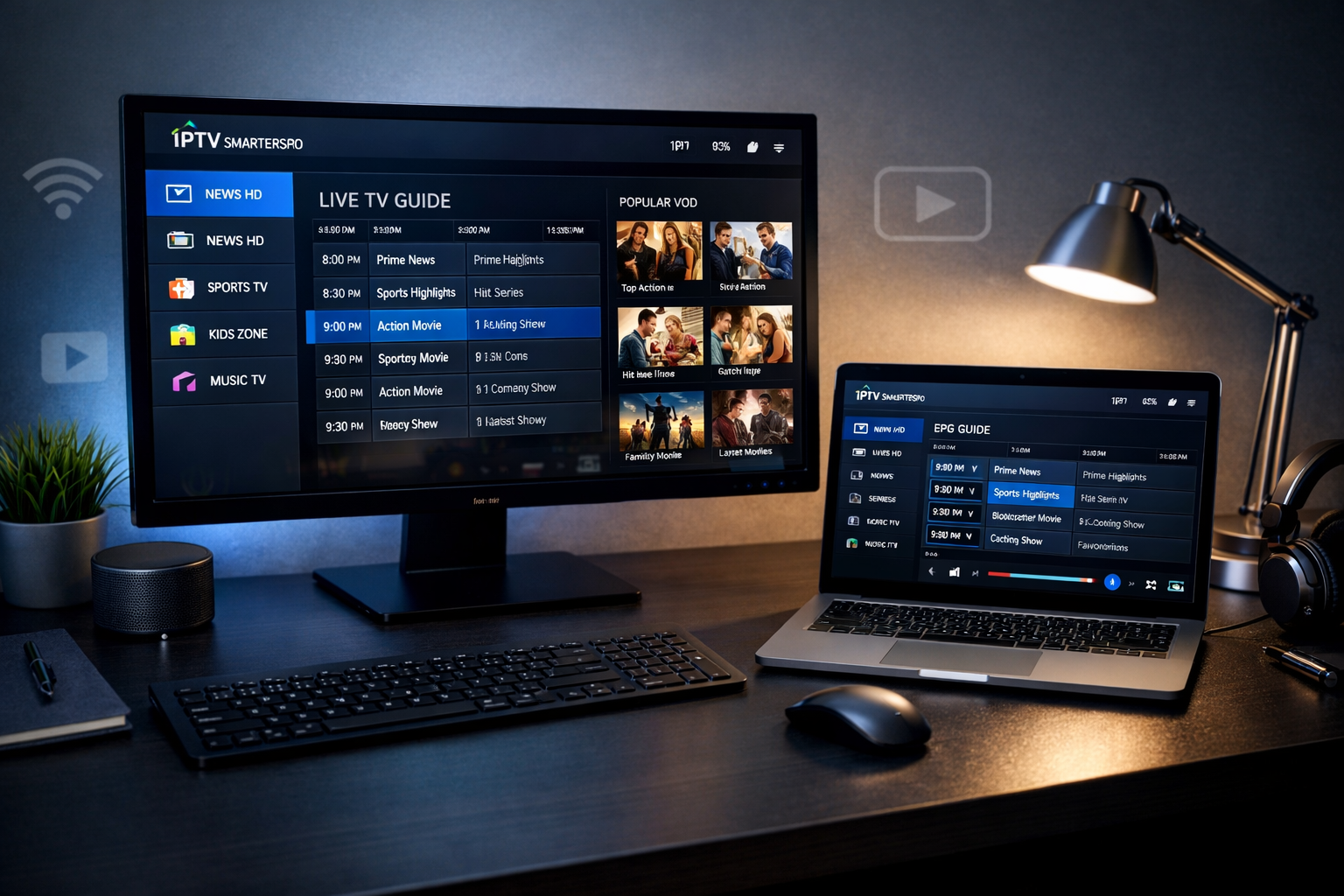
If you prefer watching on a desktop or laptop, a PC-based IPTV player can be a practical option—bigger screen, easier navigation, and smoother multitasking. This guide explains what the PC app does, what it doesn’t do, and how to avoid the common setup mistakes.
1) What This PC App Is (and Isn’t)
The phrase IPTV Smarters Pro PC usually refers to a desktop version of an IPTV player designed for computers (commonly Windows, sometimes macOS). It’s built to organise and play streams that come from an external service you already have access to.
What it does:
- Loads your playlists or login credentials (depending on the method your service provides).
- Organises content into a familiar layout: Live TV, movies, series, and sometimes catch-up (service dependent).
- Provides a player interface that can feel more “TV-like” than basic players.
What it does not do:
- It does not come with channels or a catalogue built-in.
- It does not “make” streams legal or illegal—rights and licensing depend on the source of the content.
- It cannot fix poor streams from an unreliable provider (it can only play what it receives).
2) How Playback Works on a Computer
On PC, the experience depends on three moving parts: your internet connection, your device performance, and the stream quality coming from the service. The player’s job is mainly to authenticate, load categories/EPG if available, and decode the video smoothly.
A computer often handles decoding better than older TVs, which is why many users choose a desktop setup—especially when they want a stable interface, keyboard shortcuts, or the ability to watch while working.
3) What You Need for a Smooth Experience
Before you spend time troubleshooting, check these basics:
- Stable broadband: consistency matters more than peak speed (Wi-Fi drops cause “random” buffering).
- Modern Windows install: keep graphics drivers updated for better video decode performance.
- Reasonable hardware: most modern laptops are fine, but very old CPUs struggle with higher bitrate streams.
- Ethernet (optional): if your Wi-Fi is busy at night, wired can be noticeably steadier.
4) Typical Setup Flow
Most PC setups follow a simple pattern:
- Install the desktop app on your computer.
- Open it and choose the login method your service supports.
- Enter your credentials/playlist details.
- Let the app load categories and (if available) the TV guide/EPG.
- Adjust player settings for stability (hardware decode on, sensible streaming format).
If you need a general “getting started” overview for devices, you can also browse our guides hub: iptv-uk.shop. For support or account questions, use our contact page.
5) Features People Actually Use
Most viewers stick to a small set of features that improve daily use:
- EPG / TV Guide: helpful for live viewing, but only as accurate as the data provided by the service.
- Search and favourites: saves time if you watch a consistent set of channels or categories.
- Profiles: useful for households sharing one machine.
- Playback controls: aspect ratio, subtitles (when available), and audio track selection (stream dependent).
If you’re building a multi-device setup (TV + PC + mobile), keep your viewing simple: one primary device for living room viewing, and the PC for desk-time and quick checks.
6) PC App vs Browser Streaming
Browser-based streaming can be convenient, but it often lacks the organisation and guide support people expect. A dedicated PC app usually wins on:
- Interface: clearer categories, a more consistent “TV-like” layout.
- Guide support: EPG features are usually stronger in dedicated players.
- Stability: fewer browser quirks, fewer extension conflicts, less random tab throttling.
7) Common Issues and Quick Fixes
Playback stutters or buffers
- Switch from Wi-Fi to Ethernet (or move closer to the router).
- Enable hardware decoding (if the app offers it).
- Close heavy apps (browser with many tabs, downloads, cloud sync spikes).
- Test at non-peak time to see whether congestion is the real cause.
Channels/categories don’t load
- Double-check credentials (one character wrong can still “log in” but fail to load properly in some systems).
- Re-add the profile and reload.
- Try the same login on another device to isolate whether it’s the PC or the stream/source.
EPG is empty or wrong time
- Run an EPG update inside the app (if available).
- Adjust EPG time offset settings (+/- hours) if programmes are shifted.
8) Legal Awareness (Plain English)
IPTV is a delivery method—like any other streaming technology. Whether a particular stream is lawful depends on licensing and distribution rights. If you’re unsure, treat that as a signal to do due diligence and only use sources you’re authorised to access.
9) Helpful Resources
Internal links
External resources (neutral / authority)
- Google Search Central (docs)
- Ofcom (UK communications regulator)
- Cloudflare: What is streaming?
- Wikipedia: Internet Protocol television
- WIPO: Copyright overview
Final Takeaway
Using a PC player can be one of the easiest ways to watch on a larger screen with better control—especially if you value quick navigation and consistent playback. Keep expectations realistic: the app is the interface, but reliability comes from your connection and the quality of the stream source.