

IPTV Smarters Xtream Codes Setup (UK 2026): Step-by-Step Login + Fixes
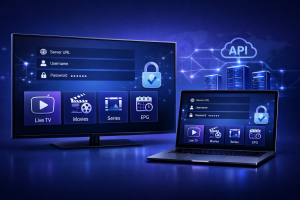
This UK guide shows the exact fields to enter, common mistakes, and fast fixes if login fails.
This IPTV Smarters Xtream Codes Setup guide is built for UK users on Firestick / Fire TV, Android / Google TV,
iPhone / iPad, and Windows. We cover the correct Xtream Codes format, how to add a new profile safely,
how to confirm Live TV / Movies / Series / EPG loaded, and the quickest troubleshooting steps for
“Invalid Login”, empty categories, buffering, or missing guide data.
Only use services you’re authorised to access and follow your provider’s terms.
If you’re installing the app first, use Install IPTV Smarters Pro (All Devices).
If you’re using an M3U playlist instead of Xtream, use M3U playlist setup.
For EPG fixes, use IPTV Smarters EPG guide.
For buffering, use Buffering fix guide.
Table of Contents
Jump
- What you’ll need
- Step 1: Create a new profile in IPTV Smarters
- Step 2: Choose Xtream Codes API login (correct fields)
- Step 3: Verify everything loaded (Live TV, VOD, Series, EPG)
- Step 4: EPG (TV Guide) setup + UK time offset
- Step 5: Recommended playback settings (smooth streaming)
- Step 6: Troubleshooting (Invalid login, empty categories, buffering)
- Security & privacy notes (UK)
- External resources
- Related guides on our site
What you’ll need
Checklist
- IPTV Smarters app installed (Smarters Player / Smarters Pro)
- Stable internet connection (Wi-Fi 5GHz or Ethernet recommended for TVs)
- Xtream Codes login details from your provider (or your own legal service):
- Server URL (example format:
http://example.com:8080) - Username
- Password
- Server URL (example format:
Most “Invalid Login” issues are simple formatting mistakes (missing
http://, wrong port, or extra spaces).Step 1: Open IPTV Smarters and create a new profile
Profile
- Launch IPTV Smarters.
- Select Add User (or Add New User).
If you already have a user added, open the Users / Profiles screen and choose Add User to create an additional profile.
This is useful for keeping a “backup” profile separate if you troubleshoot later.
Step 2: Choose Xtream Codes API login (correct fields)
Xtream
- Select Login with Xtream Codes API.
- Enter the following fields (names may vary slightly by version):
- Profile Name (any name, e.g., “Home UK”)
- Username
- Password
- Server URL (include
http://orhttps://and the port if provided)
http://yourserver.com:8080https://yourserver.com:443(only if your provider explicitly supports it)http://123.45.67.89:8080
Avoid adding extra paths unless your provider told you to. Most Xtream setups only need the base server URL + port.
- Tap Add User / Login.
- Wait for content to load.
That’s why it’s often the most stable setup for UK households using Fire TV / Android TV.
Step 3: Verify everything loaded (Live TV, VOD, Series, EPG)
Check
After login, confirm these basics so you know the profile is correctly connected:
- Live TV shows categories and channels
- Channels play (test 2–3 channels from different categories)
- Movies and Series appear (if included in your subscription)
- EPG (TV Guide) appears (if your provider supplies EPG data)
If the app looks empty after login:
- Go to Settings → Refresh/Reload Content (or Reload User).
- Force close the app and reopen.
If Live TV loads but the guide is missing, skip to Step 4 (EPG).
Step 4: EPG (TV Guide) setup + UK time offset
EPG
With Xtream Codes, EPG is often automatic. If your TV guide is missing, blank, or stuck, refresh it first:
- Open Settings.
- Open EPG.
- Tap Update / Refresh EPG.
Fix wrong programme times (UK)
If your guide is off by an hour (common around daylight saving changes), correct time alignment:
- Ensure your device time/date is set to Automatic and the time zone is correct for the UK.
- Then use Settings → EPG Time Offset and adjust +1 / -1 hour until listings match local time.
For full EPG troubleshooting, use:
IPTV Smarters EPG guide.
Step 5: Recommended playback settings (smooth streaming)
Settings
Open Settings → Player Settings (names vary by version) and apply these stable defaults:
- Streaming Format: HLS (often most stable on UK home networks)
- Hardware Decoder: ON
- Buffer Size: Small first, then test Medium
If channels stutter or fail to load, test:
- Switch HLS ↔ MPEGTS and re-test the same channel.
Use our buffering fix guide to isolate whether it’s your network, your device, or server load.
Step 6: Troubleshooting (fast fixes)
Fix
“Invalid Login” / Login failed
- Re-check the Server URL (correct format, correct port, no spaces).
- Confirm username/password (copy/paste carefully; watch for hidden spaces).
- Try toggling http ↔ https only if your provider explicitly supports it.
No channels or empty categories after login
- Settings → Refresh/Reload Content (or Reload User).
- Log out and re-add the profile (common fix after a typo correction).
- Restart the app/device.
Buffering or freezing
- Restart your device and router.
- Use a stronger network (5GHz Wi-Fi or Ethernet if possible).
- Reduce background downloads/streams.
- Switch HLS ↔ MPEGTS and test again.
EPG not showing
- Run EPG Update/Refresh.
- Adjust EPG Time Offset (+/- hours).
- Some services do not include EPG data even via Xtream — confirm with your provider.
you’ll quickly learn whether the issue is device performance or provider-side account/server behaviour.
Security & privacy notes (UK)
Safe use
- Use strong, unique passwords for your IPTV account if your provider allows changing them.
- Avoid sharing your Xtream credentials in public chats or screenshots.
- Keep your device OS updated and only install apps from reputable sources.
For privacy/performance tuning, see:
IPTV Smarters VPN Guide.
External resources
Neutral
- Android: clear app cache (Google Help)
- Apple: set date and time automatically (iOS/iPadOS)
- WIPO: copyright basics
External links are provided for neutral device settings and general consumer references.